
Update MFA from SMS (text) to Authenticator
How to Instructions for changing the MFA on your Microsoft 365 Account from SMS to Microsoft Authenticator.
1. Go to https://mysignins.microsoft.com/security-info and sign in using your Microsoft account.
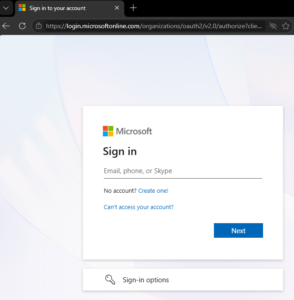
2. Choose Add Sign-In Method or if you already have Microsoft Authenticator setup and see it on the list below, skip to step 11
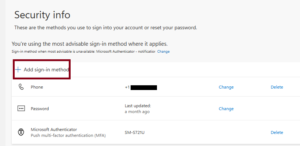
3. Choose Microsoft Authenticator from the list
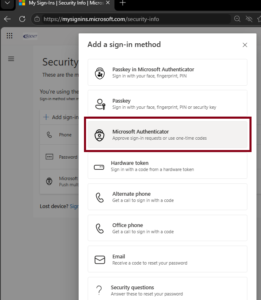
4. Download the Microsoft Authenticator App on your cell phone.
Download instructions for Microsoft Authenticator
5. Once downloaded and installed, open the authenticator app.
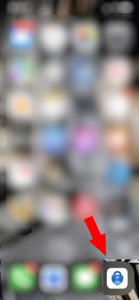
6. Press the plus sign in the upper right to add a new account.
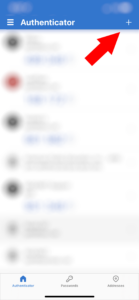
7. Add account:
-Select work or school account
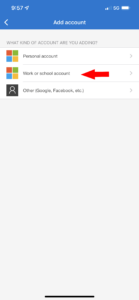
8. After selecting work or school account:
-It will bring up two options. Sign in or Scan QR code.
-Select Scan QR code.
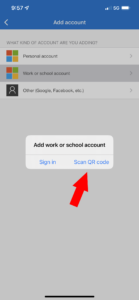
-After selecting Scan QR code, it will bring up your camera, at this point you will not need to go any further on your phone until you complete steps 9-11 on your computer.
-Step 12 will require you to scan the QR code.
9. In the web browser you logged into in step 1, continue on mysignins.microsoft.com/security-info and choose Next
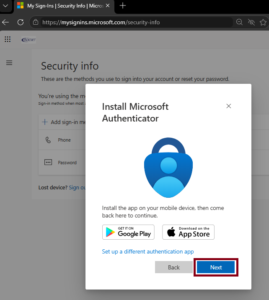
10. Choose next again.
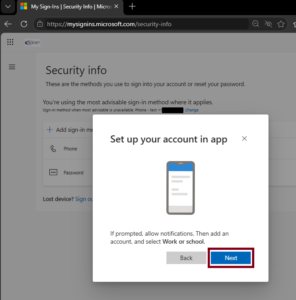
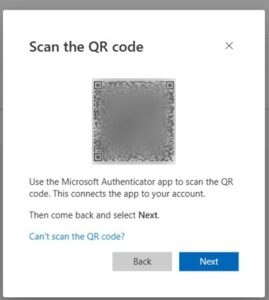
11. On your phone in the authenticator app Scan the QR code in your browser (the below is just an example, DO NOT SCAN).
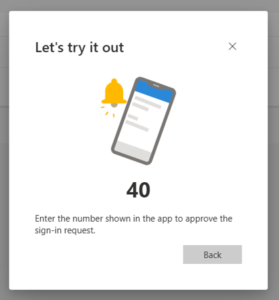
12. Once you scan the QR code you will receive a notification on your mobile device to enter the number (example below) on your screen into the app on your phone, enter that number.
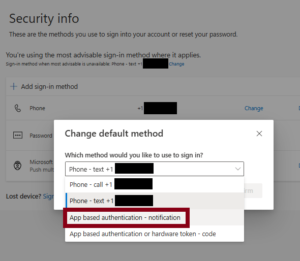
13. You now have the Authenticator app added. We now must set it as your primary. On the site mysignins.microsoft.com/security-info, select the change button near the top center of the screen. Your current primary method will be listed there (for example, phone number)
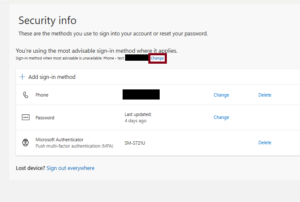
14. Next choose your Authentication app.
15. You should now be set up for MFA via the authentication app and are prepared for SMS to be depreciated.
Thank you for taking the time to keep your account accessible and secure.


